Playing Minecraft alone can be fun, but multiplayer servers make the game much more exciting. On Minecraft Bedrock Edition, which runs on the Android APK version, players can join online worlds, play minigames, build with others, and explore large community servers.
This guide explains how to join featured public servers, add custom servers using an IP address, and fix common connection problems on Android devices.
Sign In with a Microsoft Account
Minecraft Bedrock Edition requires a Microsoft account for multiplayer access. The game uses this account to verify player identities before allowing connections to online servers.
Without signing in, public and custom multiplayer servers cannot be accessed.
Follow these steps:
- Open Minecraft on the Android device.
- Tap the Sign In button on the lower-left side of the main screen.
- Enter Microsoft or Xbox Live account details.
- Complete the sign-in process.
After successful login, the player’s Gamertag will appear on the main menu. This means the account is authenticated and ready for multiplayer features.
Method 1: Join Featured Official Servers
Minecraft includes several featured partner servers that are already set up inside the game. These servers do not require manual configuration.
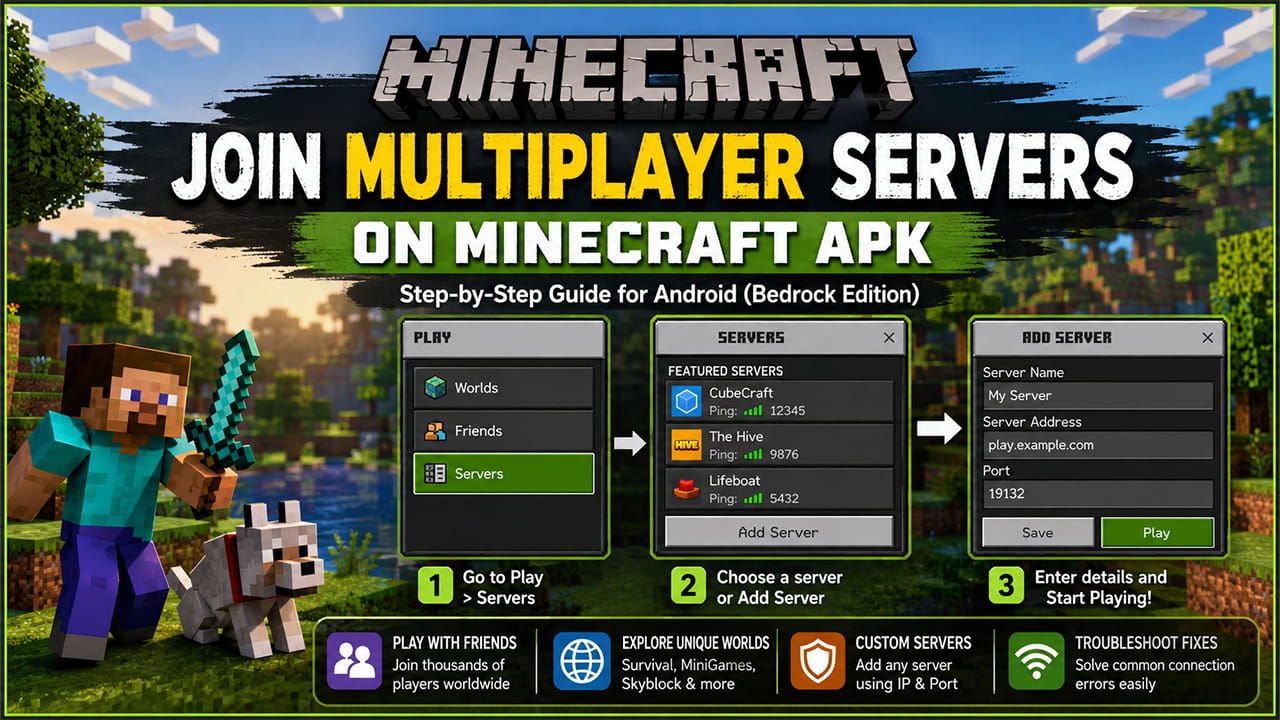
Popular featured servers may include networks such as CubeCraft, The Hive, and Lifeboat.
Steps to Join
- Open Minecraft.
- Tap Play.
- Select the Servers tab at the top of the screen.
- Browse the list of featured servers.
- Check the displayed player count and ping information if needed.
- Select a server.
- Tap Join Server.
The game will connect automatically to the selected server.
Method 2: Add a Custom Server Using an IP Address
Many community servers and private servers are not listed in the featured server section. To join these servers, the server details must be entered manually.
The game needs three pieces of information to create the connection.
Required Server Information
| Field | Format | Purpose |
|---|---|---|
| Server Name | Any name chosen by the player | Helps identify the server in the server list |
| Server Address | Domain name or IP address | Tells Minecraft where the server is located |
| Port | Usually 19132 | Directs traffic to the correct game server |
Example
- Server Name: Survival World
- Server Address: play.example.com
- Port: 19132
Steps to Add a Server
- Open Minecraft.
- Tap Play.
- Go to the Servers tab.
- Scroll down to the bottom of the server list.
- Tap Add Server.
- Enter the server information.
Fill in the following fields:
- Server Name: Enter any name that helps identify the server.
- Server Address: Enter the provided hostname or IP address.
- Port: Leave it at 19132 unless the server owner provides a different port number.
After entering the information:
- Tap Save to store the server in the list.
- Tap Play to connect immediately.
Saved servers will appear under the Additional Servers section.
Troubleshooting Multiplayer Connection Problems
Sometimes Minecraft cannot connect to a server because of account issues, network problems, version differences, or privacy settings.
The following solutions can help fix the most common errors.
1. “You Must Sign In to a Microsoft Account” or “Invalid Session”
This problem usually happens when the login session becomes outdated or the authentication data is no longer valid.
Solution
- Open Settings from the main menu.
- Go to the Account section.
- Select Sign Out of Your Microsoft Account.
- Close Minecraft completely.
- Reopen the game.
- Sign in again using the Microsoft account.
This process refreshes the authentication session and creates a new connection with Xbox services.
2. “Unable to Connect to World”
This is one of the most common multiplayer errors. It usually means the game cannot establish a network connection with the server.
Solution
Check the following:
- Make sure the internet connection is stable.
- Disable any active VPN service running on the device.
- Try reconnecting to Wi-Fi.
- Verify that the server address and port are entered correctly.
- If using a home network, check router firewall settings.
Minecraft Bedrock commonly uses UDP traffic through port 19132. Network restrictions may sometimes block the connection.
3. “Outdated Client” or “Server Outdated”
Minecraft servers and clients must use compatible game versions. If the versions do not match, the connection will fail.
Solution
- Look at the version number shown on the Minecraft title screen.
- Check which version the server is running.
- Update the game if needed.
- If using an APK installation, install the correct version that matches the server requirements.
Before updating, it is a good idea to back up saved worlds and important game data.
Once both versions match, the server should allow the connection.
4. Xbox Privacy Settings Blocking Multiplayer
Some Microsoft accounts have privacy restrictions enabled. This often affects child accounts or accounts with strict safety settings.
When these settings block multiplayer access, Minecraft cannot join online servers even when everything else is configured correctly.
Solution
- Open a web browser.
- Sign in to the Microsoft or Xbox account settings page.
- Open Privacy & Online Safety settings.
- Locate multiplayer permissions.
- Find the option called You can join multiplayer games.
- Change the setting to Allow.
- Save the changes.
After updating the settings, restart Minecraft and try connecting again.
Important Note About Mobile Data
Many Minecraft Bedrock installations limit multiplayer traffic on cellular networks to help reduce unexpected mobile data usage.
Because of this setting, multiplayer may work on Wi-Fi but not on mobile data.
Enable Cellular Data for Multiplayer
- Open Settings inside Minecraft.
- Find the Use Cellular Data option.
- Turn the setting on.
After enabling this option, Minecraft can connect to multiplayer servers using a mobile network as well as Wi-Fi.
Final Thought About Minecraft Multiplayer
Joining Minecraft APK multiplayer servers is usually a simple process. First, sign in with a Microsoft account. Next, choose a featured server or add a custom server using its IP address and port number. If connection problems appear, check account authentication, network settings, game version compatibility, and Xbox privacy permissions.
Once everything is configured correctly, players can access multiplayer worlds, community servers, minigames, and shared adventures across the Minecraft Bedrock network.