Running x86 and x64 Windows games on an Android phone with Winlator is one of the best things mobile emulation can do today. It lets Android devices play many Windows games that normally need a PC. Even so, the default settings do not always give good performance. Many users notice low FPS, game crashes, audio crackling, long loading times, or random freezes.
The good news is that most of these problems can be fixed with the right settings. Winlator uses Wine, Box86, Box64, and graphics drivers together. Each part affects game performance in a different way. So, changing only one setting may not be enough. A balanced setup usually gives the best results.
Learning How To Optimize Winlator can improve frame rates, reduce heat, lower stuttering, and make games much more stable. The sections below explain the most important settings and why they matter.
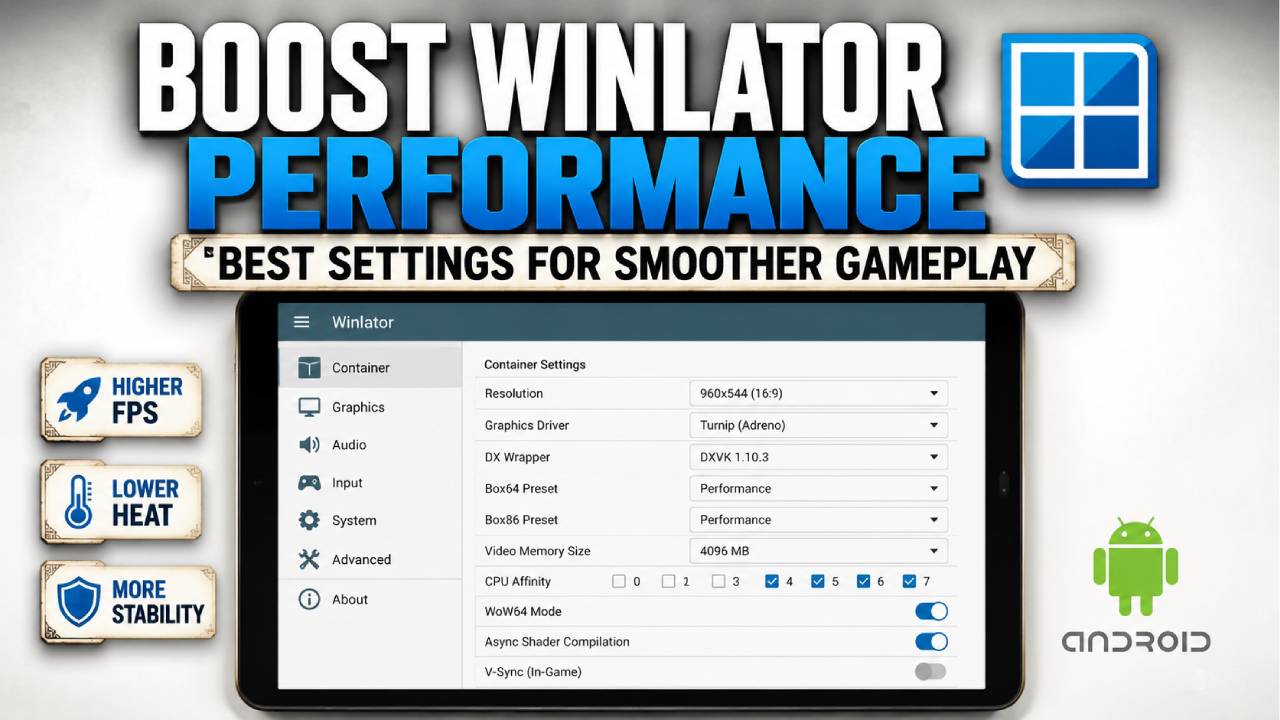
1. Adjust Container Resolution and Aspect Ratio
One of the fastest ways to improve performance is lowering the container resolution. This setting controls how many pixels the phone needs to render. More pixels mean more work for the GPU. As a result, higher resolutions often reduce FPS and increase device temperature.
Choose a Lower Resolution
For many games, 800×600 works very well for older 4:3 games. If the game supports widescreen, 960×544 is another great choice for a 16:9 aspect ratio.
These resolutions may seem low, but modern Android screens still make them look quite good. At the same time, they reduce the graphics workload by a large amount. This often gives smoother gameplay and better battery life.
Avoid Native Screen Resolution
Do not set the container to match the phone’s actual display resolution, such as 1080p or 1440p.
Although the image may look sharper, the phone has to process far more pixels. Since Winlator already translates Windows instructions to Android, the extra rendering work can quickly reduce performance. It can also make the phone heat up much faster and trigger thermal throttling.
2. Configure Graphics Drivers and DX Wrappers
The graphics driver and DX Wrapper work together. They translate Windows graphics commands into Vulkan so Android hardware can understand them. Picking the right combination is very important because the wrong one can reduce performance or even stop a game from launching.
Select the Correct Graphics Driver
Snapdragon devices with Adreno GPUs
Use the Turnip (Adreno) graphics driver. It is specially optimized for Adreno graphics hardware and usually gives the best performance and stability.
MediaTek or Exynos devices with Mali or Immortalis GPUs
Choose VirGL (Universal) instead.
Turnip is not made for these chipsets. Trying to use it on unsupported hardware can cause Winlator to crash as soon as the container starts.
Pick the Right DX Wrapper
Different games use different versions of DirectX. Because of that, the wrapper should match the game whenever possible.
| Game Type | Recommended Wrapper | Result |
|---|---|---|
| Direct3D 9, 10, or 11 games | DXVK 1.10.3 | Better performance and efficient Vulkan translation |
| Direct3D 12 games | VKD3D | Proper support for newer DirectX features |
| Older games, 2D games, or some indie games | WineD3D | Better compatibility, but lower performance |
If one wrapper causes problems, another wrapper may allow the game to run normally.
3. Manage CPU Affinity and Core Allocation
Most Android phones use a big.LITTLE CPU design. Some CPU cores are built for maximum speed, while others save battery power.
If Winlator mainly uses the slower cores, game performance can suffer even when the phone has powerful hardware.
Use the Performance Cores
Open the container settings and go to CPU Affinity.
In many phones, the first few cores, such as Core 0 to Core 3, are the efficiency cores. The later cores are usually the high-performance cores.
Disable the slower cores and enable the faster ones whenever possible. This allows the game to spend more time on the CPU cores designed for heavy workloads.
Leave One Core Available
Do not enable every CPU core.
Leave at least one performance core unchecked. This gives Android enough processing power to handle system tasks in the background.
If Winlator uses every core, Android may reduce CPU speed to protect the system. This can create stuttering, frame drops, and unstable performance during gameplay.
4. Tune Box86 and Box64 Settings
Box86 translates 32-bit Windows programs, while Box64 translates 64-bit Windows programs.
Both include different presets that control how they translate instructions.
Use the Performance Preset
For games that already run well, switch both Box86 and Box64 to the Performance preset.
This allows faster instruction translation and often increases FPS in demanding games.
Games such as Hollow Knight or Dragon’s Dogma usually benefit from these settings if they are already stable.
Switch to Compatibility When Needed
Not every game likes aggressive optimization.
If a game crashes during startup, freezes after loading, or shows broken graphics, change the preset back to Compatibility.
Some game engines depend on very accurate instruction timing. Compatibility mode focuses more on stability than speed, so it can solve problems that Performance mode cannot.
5. Optimize Memory and System Settings
Memory settings also affect game stability. If memory is not managed properly, Android may close the Winlator container while the game is running.
Set Wine Video Memory Correctly
Open the Wine Configuration section and adjust the Video Memory Size.
For a phone with 8 GB of RAM, a value between 2 GB and 4 GB is usually a good choice.
A very high value can leave too little memory for Android. On the other hand, a very low value limits texture storage and may reduce game performance.
Choose a value that matches the phone’s available hardware.
Enable Experimental WoW64 Mode
Turn on Enable experimental WoW64 mode in the Advanced settings.
This feature helps 32-bit applications run more smoothly inside a 64-bit environment. It also improves memory handling for many games.
Disable Background Performance Limiters
Some Xiaomi, Poco, and Redmi phones include a background service called Joyose.
This service may reduce performance during long gaming sessions by limiting CPU or GPU speed.
If possible, disable Joyose through the Android app settings. This can help maintain more stable frame rates during extended gameplay.
6. Troubleshoot Common Performance Problems
Even with the correct settings, some games may still have problems. The following solutions fix many common issues.
Black Screen or Game Crash
A black screen or startup crash often means the graphics driver or DX Wrapper is not compatible with the game.
First, switch from DXVK to WineD3D and test the game again.
Also, make sure the game files are stored inside the /sdcard/Download folder. This location usually avoids storage permission problems that may stop Winlator from reading the game files correctly.
Audio Crackling or Stuttering
Poor audio usually means the CPU cannot process everything fast enough.
Open the container settings and go to Environment Variables.
Create a new variable:
stutter_free_audio = 1
If the audio still crackles, lower the game’s sound sample rate if the option is available.
Another option is reducing the Box86 or Box64 execution preset by one level. Although this may lower performance slightly, it can improve overall stability and produce smoother audio.
In-Game Micro-Stutters
Small stutters often happen when entering a new area in a 3D game.
This is usually caused by shader compilation. The Turnip driver builds new shaders while the game is running, which creates short pauses.
If the DXVK settings include Async Shader Compilation, enable it.
Also, turn V-Sync off inside the game’s own graphics settings. This can reduce input delay and improve frame pacing, making gameplay feel smoother.