Remote desktop software helps people control another computer through the internet. Many people use it for office work, technical support, or personal access from another place. However, choosing the right remote desktop tool can feel confusing because many programs offer different features and security options.
3uRemote is a remote desktop application made by the same team behind 3uTools. It helps users connect to another computer safely and control it from anywhere. The software supports remote access for work, support, and personal use. In addition, it gives users simple connection methods with extra security settings.
This guide explains how 3uRemote works, how to set it up, and how to keep remote sessions safe.
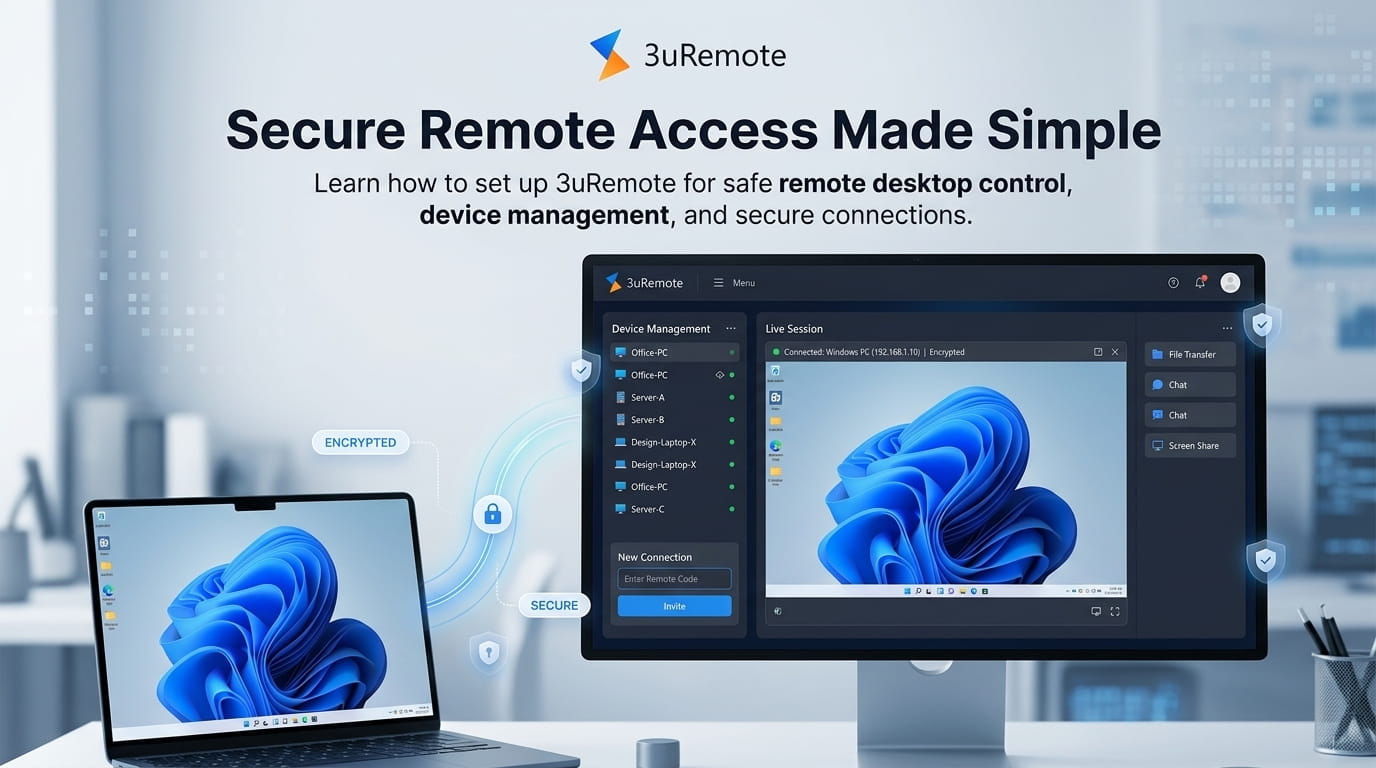
What is 3uRemote?
3uRemote is a remote desktop program that allows one computer to control another computer through the internet. It works in a similar way to remote desktop tools like TeamViewer or AnyDesk.
The software sends the screen of the target computer to the controller computer in real time. At the same time, keyboard and mouse actions travel back to the target machine. Because of this, the user feels like they are sitting directly in front of the remote computer.
People use 3uRemote for many different tasks. For example, office workers use it to access work computers from home. IT teams use it to fix problems remotely. Some users also connect to their home computers while traveling.
The software focuses on simple setup, quick connections, and safe access methods. Instead of difficult network settings, it uses unique device IDs and passwords to create secure remote sessions.
Main Features of 3uRemote
3uRemote includes several useful features for both personal and business users.
Quick Remote Support
One of the most useful features is temporary remote support. A user can quickly share a connection code and password with another person. After that, the helper can connect and solve technical problems remotely.
This feature works well for IT support, customer service, and helping family members with computer issues.
Unattended Remote Access
Sometimes nobody is near the target computer. In that case, unattended access becomes important.
3uRemote allows users to connect to their own computers anytime without needing someone to accept the request. This feature is very useful for office systems, home desktops, and servers.
For example, a person traveling in another city can still access files from their home computer.
Device Organization
Managing many remote devices can become messy very fast. Therefore, 3uRemote includes device grouping features.
Users can organize computers using nicknames, folders, and account-based lists. As a result, finding the correct computer becomes easier.
This feature helps businesses and IT teams manage multiple machines without confusion.
Multiple Security Options
Security matters a lot in remote desktop software because the connected user receives full system access.
3uRemote supports different verification methods. Users can choose a custom remote password or use operating system administrator credentials.
Because of these choices, users can build stronger protection for important systems.
How to Set Up 3uRemote
Setting up 3uRemote is simple and does not require advanced technical knowledge.
The software must be installed on both computers:
- The controller computer
- The target computer
After installation, the application automatically creates unique connection details for the target machine.
Step 1: Find the Connection Code and Password
Before starting a remote session, the target computer must provide connection information.
Follow these steps:
- Open 3uRemote on the target computer.
- Go to the Local Computer Information section.
- Find the Connection Code displayed on the screen.
- Locate the Connection Password next to the code.
The connection code acts like the device ID. Meanwhile, the password protects the connection from unauthorized access.
If needed, users can refresh the password instantly. Clicking the refresh button creates a brand-new password and blocks old connection attempts.
This feature improves security, especially when a password was shared accidentally.
Step 2: Start a Remote Connection
Once the connection information is ready, the controller computer can connect to the target machine.
Open the Main Dashboard
First, launch 3uRemote on the controller computer.
After that, open the main dashboard window.
Enter the Target Information
Next, type the Connection Code of the target machine.
Then enter the current Connection Password carefully.
Connect to the Remote Computer
Finally, click the Connect button.
The software checks the credentials through secure servers. If everything matches correctly, the remote desktop window opens immediately.
At this point, the controller user can fully manage the target computer.
Understanding “My Devices” and “Remote Devices”
3uRemote separates connected computers into two main categories. This setup makes device management much easier.
| Category | Main Purpose | Connection Method |
|---|---|---|
| My Devices | Personal computers under the same account | Quick access using a permanent remote password |
| Remote Devices | Client or external computers | Standard connection code and password |
This structure helps users avoid confusion when working with many systems.
Setting Up Unattended Access
Unattended access is useful for personal computers that require regular remote access.
Instead of entering temporary passwords every time, users can link devices directly to their accounts.
During setup, 3uRemote offers two verification methods.
Remote Password Verification
This method is recommended for most users.
A permanent remote password is created inside the application settings. After that, users can connect quickly from another logged-in device.
This method keeps the process simple and fast.
Administrator Account Verification
This option uses the administrator username and password of the operating system itself.
For example, Windows administrator credentials can verify the connection.
This method adds another security layer because the system checks real operating system accounts.
Using the Favorites List
Many users connect to the same computers repeatedly. Entering connection codes every time can waste time.
The Favorites feature solves this problem.
Follow these steps to save a device:
- Open the Remote Devices section.
- Select Favorites.
- Click the “+” button to add a device.
- Or right-click a previous connection from the history list.
- Select “Favorite remote device.”
- Save the connection details.
After saving, users can connect directly from the Favorites list without typing information again.
This feature improves speed and workflow efficiency.
Important Security Tips for 3uRemote
Remote desktop software gives full access to a computer. Therefore, strong security settings are very important.
Change Passwords Frequently
Users should update connection passwords regularly.
For better protection, set passwords to refresh after every remote session. This reduces the chance of unauthorized access.
Use Clear Device Names
Instead of random device IDs, create clear nicknames for computers.
For example:
- Office Main PC
- Finance Desktop
- Home Media Server
Clear names help avoid connecting to the wrong machine by mistake.
Remove Unused Devices
Old or unused computers should not remain connected to the account forever.
If a device no longer needs remote access, remove it from the device list immediately.
Users can right-click the device and select Unbind. This action deletes the connection relationship between devices.
As a result, old security permissions disappear completely.
Final Thoughts
3uRemote provides a simple way to control computers remotely through the internet. The software supports both quick support sessions and long-term unattended access.
Its device management system helps users organize multiple computers easily. In addition, built-in password controls improve connection security.
The setup process remains simple even for beginners. At the same time, the software still includes advanced features for regular remote access users.
For people who need remote desktop access for work, technical support, or personal use, 3uRemote offers a practical and secure solution.